PDF to JPG Conversion with Python (for Windows)

Interested in learning ArcPy? check out this course.

I recently had a torrid time trying to research and implement a Python script that could batch convert from PDF to JPG. There are numerous entries online that aim to help (and did so in parts) but I struggled to find one with a concise workflow from start to finish that satisfied my criteria and involved setting up what’s required to implement such. The below could be slated for not being the most ‘Pythonic’ way to get it done but it certainly made my life easier. I was struggling with Wand and ImageMagick as per most posts until I luckily stumbled across an entry on StackOverflow where floqqi, my new hero, answered my prayers. I felt that if I struggled with this that there must be others out there with the same predicament and I hope that the title of this post will help it come to the forefront of searches and aid fellow Python snippet researchers in finding some salvation.
Note: I am using Python 2.7 32-bit on Windows 7 Professional

1. Install ImageMagick
floqqi recommends downloading the latest version, which at the time of writing this is 7.0.4-3. I had already installed an earlier version while trying to get the Wand module to work. My version is 6.9.7-3. If you hover over the links you should be able to see the full link name http://www.imagemagick.org/download/binaries/ImageMagick-6.9.7-3-Q8-x86-dll.exe, or just click that link to download the same version I did.
Run the installer, accept the license agreement, and click Next on the Information window. In the Select Additional Tasks make sure that Install development headers and libraries for C and C++ is selected.

imagemagick

Click Next and then Install.

2. Install GhostScript
I
nstall the 32-bit Ghostscript AGPL Release

3. Set Environment Variables
Create a new System Variable (Advanced System Settings > Environment Variables) called MAGICK_HOME and insert the Image Magick installation path as the value. This will be similar to C:\Program Files (x86)\ImageMagick-6.9.7-Q8
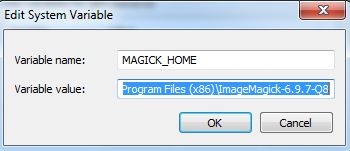
MAGICK_HOME

Click OK and and make sure that the same value (C:\Program Files (x86)\ImageMagick-6.9.7-Q8) is at the start of the Path variable. After this entry in the Path variable insert the entry for GhostScript which will be similar to C:\Program Files (x86)\gs\gs9.20\bin
Note: make sure that the entries are separated by a semi-colon (;)

4. Check if steps 1-3 have been correctly configured
Open the Command Prompt and enter…

convert file1.pdf file2.jpg

where file.pdf and file2.jpg are fully qualified paths for an input PDF and and output JPG (or the current directory contains the file).

convert cmd

If no errors are presented and the JPG has been created you can move on to the next step. Otherwise step into some troubleshooting.

5. Install PythonMagick
I downloaded the Python 2.7 32-bit whl file PythonMagick‑0.9.10‑cp27‑none‑win32.whl and then used pip to install from the command prompt.

pip install C:\Users\glen.bambrick\Downloads\pip install PythonMagick‑0.9.10‑cp27‑none‑win32.whl

Open up a Python IDE and test to see if you can import PythonMagick
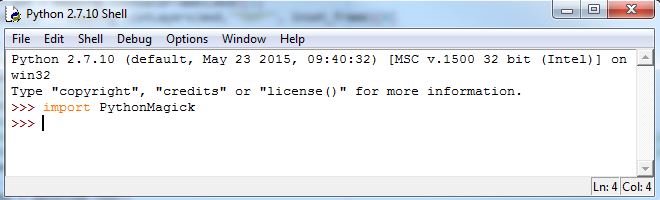
import PythonMagick

We now have everything set up and can begin to write a script that will convert multiple (single page) PDFs to JPGs. 

Import the necessary modules.

import os, PythonMagick
from PythonMagick import Image
from datetime import datetime

Ok so datetime isn’t necessary but I like to time my scripts and see if it can be improved upon. Set the start time for the script

start_time = datetime.now()

A couple of global variables, one for the directory that holds the PDFs, and another to hold a hexidecimal value for the background colour ‘white’. After trial and error I noticed that some JPGs were being exported with a black background instead of white and this will be used to force a white background. I found a useful link on StackOverflow to help overcome this.

pdf_dir = r"C:\MyPDFs"
bg_colour = "#ffffff"

We loop through each PDF in the folder

for pdf in [pdf_file for pdf_file in os.listdir(pdf_dir) if pdf_file.endswith(".pdf")]:

Set and read in each PDF. density is the resolution.

    input_pdf = pdf_dir + "\\" + pdf
    img = Image()
    img.density('300')
    img.read(input_pdf)

Get the dimensions of the image.

    size = "%sx%s" % (img.columns(), img.rows())

Build the JPG for output. This part must be the Magick in PythonMagic because for a small portion of it I am mystified. See that last link to StackOverflow for the origin of the code here. The PythonMagick documentation is tough to digest and in various threads read the laments about how poor it is.

    output_img = Image(size, bg_colour)
    output_img.type = img.type
    output_img.composite(img, 0, 0, PythonMagick.CompositeOperator.SrcOverCompositeOp)
    output_img.resize(str(img.rows()))
    output_img.magick('JPG')
    output_img.quality(75)

And lastly we write out our JPG

    output_jpg = input_pdf.replace(".pdf", ".jpg")
    output_img.write(output_jpg)

And see how long it took the script to run.

print datetime.now() - start_time

This places the output JPGs in the same folder as the PDFs. Based on the resolution (density) and quality settings the process can be a bit lengthy. Using the settings above it took 9 minutes to do 20 PDF to JPG Conversions. You will need to figure out the optimum resolution and quality for your purpose. Low res took 46 seconds for all 20.

As always I feel a sense of achievement when I get a Python script to work and hope that this post will spur on some comments to make the above process more efficient. Feel free to post links to any resources, maybe comment to help myself and other readers, or if this helped you in anyway let me know and I’ll pass the thanks on to floqqi and the rest of the crew. This script is the limit of my knowledge with PythonMagick and this is thanks to those that have endeavoured before me and referenced in the links throughout this post. Thanks guys.

Complete script…

import os, PythonMagick
from PythonMagick import Image
from datetime import datetime

start_time = datetime.now()

pdf_dir = r"C:\MyPDFs"
bg_colour = "#ffffff"

for pdf in [pdf_file for pdf_file in os.listdir(pdf_dir) if pdf_file.endswith(".pdf")]:

    input_pdf = pdf_dir + "\\" + pdf
    img = Image()
    img.density('300')
    img.read(input_pdf)

    size = "%sx%s" % (img.columns(), img.rows())

    output_img = Image(size, bg_colour)
    output_img.type = img.type
    output_img.composite(img, 0, 0, PythonMagick.CompositeOperator.SrcOverCompositeOp)
    output_img.resize(str(img.rows()))
    output_img.magick('JPG')
    output_img.quality(75)


    output_jpg = input_pdf.replace(".pdf", ".jpg")
    output_img.write(output_jpg)

print datetime.now() - start_time

Table or Feature Class Attributes to CSV with ArcPy (Python)

Here’s a little function for exporting an attribute table from ArcGIS to a CSV file. The function takes two arguments, these are a file-path to the input feature class or table and a file-path for the output CSV file (see example down further).

First import the necessary modules.

import arcpy, csv

Inside the function we use ArcPy to get a list of the field names.

def tableToCSV(input_tbl, csv_filepath):
    fld_list = arcpy.ListFields(input_tbl)
    fld_names = [fld.name for fld in fld_list]

We then open a CSV file to write the data to.

    with open(csv_filepath, 'wb') as csv_file:
        writer = csv.writer(csv_file)

The first row of the output CSV file contains the header which is the list of field names.

        writer.writerow(fld_names)

We then use the ArcPy SearchCursor to access the attributes in the table for each row and write each row to the output CSV file.

        with arcpy.da.SearchCursor(input_tbl, fld_names) as cursor:
            for row in cursor:
                writer.writerow(row)

And close the CSV file.

    csv_file.close()

Full script example…

import arcpy, csv

def tableToCSV(input_tbl, csv_filepath):
    fld_list = arcpy.ListFields(input_tbl)
    fld_names = [fld.name for fld in fld_list]
    with open(csv_filepath, 'wb') as csv_file:
        writer = csv.writer(csv_file)
        writer.writerow(fld_names)
        with arcpy.da.SearchCursor(input_tbl, fld_names) as cursor:
            for row in cursor:
                writer.writerow(row)
        print csv_filepath + " CREATED"
    csv_file.close()

fc = r"C:\Users\******\Documents\ArcGIS\Default.gdb\my_fc"
out_csv = r"C:\Users\******\Documents\output_file.csv"

tableToCSV(fc, out_csv)

Feel free to ask questions, comment, or help build upon this example.

My First Encounter with arcpy.da.UpdateCursor

Interested in learning ArcPy? check out this course.

I have been using arcpy intermittently over the past year and a half mainly for automating and chaining batch processing to save myself countless hours of repetition. This week, however, I had to implement a facet of arcpy that I had not yet had the opportunity to utilise – the data access module.

Data Cursor

The Scenario
A file geodatabase with 75 feature classes each containing hundreds to thousands of features. These feature classes were the product of a CAD (Bentley Microstation) to GIS conversions via FME with data coming from 50+ CAD files. As a result of the conversion each feature class could contain features with various attributes from one or multiple CAD files but each feature class consisted of the same schema which was helpful.

cad2gis

The main issue was that the version number for a chunk of the CAD files had not been corrected. Two things needed to be fixed: i) the ‘REV_NUM’ attribute for all feature classes needed to be ‘Ver2’, there would be a mix of ‘Ver1’ and ‘Ver2’,  and ii) in the ‘MODEL_SUMMARY’ if ‘Ver1’ was found anywhere in the text it needed to be replaced with ‘Ver2’. There was one other issue and this stemmed from creating new features and not attributing them, this would have left a ‘NULL’ value in the ‘MODEL’ field (and the other fields). All features had to have standardised attributes. The script would not fix these but merely highlight the feature classes.

OK so a quick recap…
1. Set the ‘REV_NUM’ for every feature to ‘Ver2’
2. Find and replace ‘Ver1’ with ‘Ver2’ in the text string of ‘MODEL_SUMMARY’ for all features.
3. Find all feature classes that have ‘NULL’ in the ‘MODEL’ field.

The Script
Let’s take a look at the thirteen lines of code required to complete the mission.

import arcpy

arcpy.env.workspace = r"C:\Users\*****\Documents\CleanedUp\Feature_Classes.gdb"
fc_list = arcpy.ListFeatureClasses()
fields = ["MODEL", "MODEL_SUMMARY", "REV_NUM"]

for fc in fc_list:
 with arcpy.da.UpdateCursor(fc, fields) as cursor:
  for row in cursor:
   if row[0] == None or row[0] == "":
    print fc + ": Null value found for MODEL"
    break
   if row[1] != None:
    row[1] = row[1].replace("Ver1", "Ver2")
   row[2] = "Ver2"
   cursor.updateRow(row)

The Breakdown
Import the arcpy library (you need ArcGIS installed and a valid license to use)

import arcpy

Set the workspace path to the relevant file geodatabase

arcpy.env.workspace = r"C:\Users\*****\Documents\CleanedUp\Feature_Classes.gdb"

Create a list of all the feature classes within the file geodatabase.

fc_list = arcpy.ListFeatureClasses()

We know the names of the fields we wish to access so we add these to a list.

fields = ["MODEL", "MODEL_SUMMARY", "REV_NUM"]

For each feature class in the geodatabase we want to access the attributes of each feature for the relevant fields.

for fc in fc_list:
 with arcpy.da.UpdateCursor(fc, fields) as cursor:
  for row in cursor:

If the ‘MODEL’ attribute has a None (NULL) or empty string value then print the feature class name to the screen. Once one is found we can break out and move onto the next feature class.

   if row[0] == None or row[0] == "":
    print fc + ": Null value found for MODEL"
    break

We know have a list of feature classes that we can fix the attributes manually.

Next we find any instance of ‘Ver1’ in ‘MODEL_SUMMARY’ text strings and replace it with ‘Ver2’….

   if row[1] != None:
    row[1] = row[1].replace("Ver1", "Ver2")

…and update all ‘REV_NUM’ attributes to ‘Ver2’ regardless of what is already attributed. This is like using the Field Calculator to update.

   row[2] = "Ver2"

Perform and commit the above updates for each feature.

   cursor.updateRow(row)

Very handy to update the data you need and this script can certainly be extended to handle more complex operations using the arcpy.da.UpdateCursor module.

Check out the documentation for arcpy.da.UpdateCursor

Extract PDF Pages and Rename Based on Text in Each Page (Python)

Interested in learning ArcPy? check out this course.

I was recently tasked with traversing through a directory and subsequent sub-directories to find PDFs and split any multi-page files into single-page files. The end goal was to name each extracted page, that was now an individual PDF, with a document number present on each page. There was possibly over 100 PDF files in the directory and each PDF could have one to more than ten pages. At the extreme I could have been looking at around one-thousand pages to extract and rename – a task that would have been very time consuming and mind numbing to do manually.

The PDFs contained map books produced using data driven pages in ArcGIS, it was conceivable that I could also re-open the original MXDs and re-export the map book as individual pages and naming appropriately based on the document name in the attribute table. Since I was not the creator of any of these PDFs and they all came from different teams, hunting down the correct MXDs and exporting would be cumbersome and also very time consuming. There had to be a more interesting and time efficient way…

…A quick research via Google on some Python modules and I had what I needed to complete my task in a more automated and time efficient manner. I needed three modules;
(1) os – for traversing through the directories and files and for renaming the files
(2) PyPDF2 – to read/write PDF files and also to extract text from pages
(3) re – the regular expression module to find the text needed to rename the file.
The next step was write down some pseudocode to map out what needed to be achieved and then to get coding…

Let’s begin by importing the modules at the top of the script.

import os, PyPDF2, re

Define a function to extract the pages. This function will take two parameters; the path to the root directory and the path to a folder to extract the pages to. The ‘extract_to_folder’ needs to be on the same level or above the root directory. Use your operating system to create the folder named ‘extracted’ and also create a second folder called ‘renamed’.

def split_pdf_pages(root_directory, extract_to_folder):

Next we use the os module to search from the root directory down to find any PDF files and store the full filepath as a variable, one at a time.

for root, dirs, files in os.walk(root_directory):
 for filename in files:
  basename, extension = os.path.splitext(filename)
   if extension == ".pdf":
    fullpath = root + "\\" + basename + extension

We then open that PDF in read mode.

    opened_pdf = PyPDF2.PdfFileReader(open(fullpath,"rb"))

For each page in the PDF the page is extracted and saved as a new PDF file in the ‘extracted’ folder. The below snippet was sourced from stackoverflow.

    for i in range(opened_pdf.numPages):
     output = PyPDF2.PdfFileWriter()
     output.addPage(opened_pdf.getPage(i))
     with open(extract_to_folder + "\\" + basename + "-%s.pdf" % i, "wb") as output_pdf:
      output.write(output_pdf)

That completes our function to strip out individual pages from PDF files in a root directory and down through all corresponding sub-directories. This function might be all you need as you can rename the extracted pages as you save each file. The next task for me, however, was to rename the PDFs based on text contained in each individual file.

Define a function called ‘rename_pdfs’ that takes two arguments; the path to the folder where the extracted pages reside and the renamed folder. Loop through each PDF and create a filepath to each one.

def rename_pdfs(extraced_pdf_folder, rename_folder):
 for root, dirs, files in os.walk(extraced_pdf_folder):
  for filename in files:
   basename, extension = os.path.splitext(filename)
   if extension == ".pdf":
    fullpath = root + "\\" + basename + extension

Open each PDF in read mode…

    pdf_file_obj = open(fullpath, "rb")
    pdf_reader = PyPDF2.PdfFileReader(pdf_file_obj)

…and create a page object.

    page_obj = pdf_reader.getPage(0)

Now we extract the text from the page.

    pdf_text = page_obj.extractText()

My task was made quite easy because each page had a unique document number with a certain amount of characters prefixed the exact same for each. This meant that I could use regular expression, the re module, to find the prefix and then obtain the rest of the document number.

The code below finds the document number prefix in the text extracted from the page and appends the next 14 characters to the prefix to give the full document number.

    for index in re.finditer("THE-DOC-PREFIX-", pdf_text):
     doc_ext = pdf_text[index.end():index.end() + 14]
     doc_num = "THE-DOC-PREFIX-" + doc_ext
     pdf_file_obj.close()

The last thing to do is to use the document number to rename the PDF

    os.rename(fullpath, rename_folder + "\\" + doc_num + ".pdf")

That completes the two functions required to complete the task.

Set up the variables required for the function parameters…

root_dir = r"C:\Users\******\Documents\original"
extract_to = r"C:\Users\******\Documents\extracted"
rename_to = r"C:\Users\******\Documents\renamed"

…and then call each function.

split_pdf_pages(root_dir, extract_to)
rename_pdfs(extract_to,rename_to)

Run the script. The original files will remain and the renamed extracted pages will be in the renamed folder. Any PDF page that failed to be renamed will still be in the extracted folder and you can rename these manually. This failure to rename every PDF is because of the make-up of the PDF i.e. the way it was exported from a piece of software or how it was created. In a test run, out of 206 pages, 10 pages failed to be renamed. When I opened the pages the select tool was unable to highlight text and everything was embedded as an image, hence why the script couldn’t read any text to rename the document.

I hope someone out there will find this useful. I am always happy that my code works but appreciate if you have any constructive comments or hints and tips to make the code more efficient.

Here’s the full script…

# import the neccessary modules
import os, PyPDF2, re

# function to extract the individual pages from each pdf found
def split_pdf_pages(root_directory, extract_to_folder):
 # traverse down through the root directory to sub-directories
 for root, dirs, files in os.walk(root_directory):
  for filename in files:
   basename, extension = os.path.splitext(filename)
   # if a file is a pdf
   if extension == ".pdf":
    # create a reference to the full filename path
    fullpath = root + "\\" + basename + extension

    # open the pdf in read mode
    opened_pdf = PyPDF2.PdfFileReader(open(fullpath,"rb"))

    # for each page in the pdf
    for i in range(opened_pdf.numPages):
    # write the page to a new pdf
     output = PyPDF2.PdfFileWriter()
     output.addPage(opened_pdf.getPage(i))
     with open(extract_to_folder + "\\" + basename + "-%s.pdf" % i, "wb") as output_pdf:
      output.write(output_pdf)

# function for renaming the single page pdfs based on text in the pdf
def rename_pdfs(extraced_pdf_folder, rename_folder):
 # traverse down through the root directory to sub-directories
 for root, dirs, files in os.walk(extraced_pdf_folder):
  for filename in files:
   basename, extension = os.path.splitext(filename)
   # if a file is a pdf
   if extension == ".pdf":
    # create a reference to the full filename path
    fullpath = root + "\\" + basename + extension

    # open the individual pdf
    pdf_file_obj = open(fullpath, "rb")
    pdf_reader = PyPDF2.PdfFileReader(pdf_file_obj)

    # access the individual page
    page_obj = pdf_reader.getPage(0)
    # extract the the text
    pdf_text = page_obj.extractText()

    # use regex to find information
    for index in re.finditer("THE-DOC-PREFIX-", pdf_text):
     doc_ext = pdf_text[index.end():index.end() + 14]
     doc_num = "THE-DOC-PREFIX-" + doc_ext
     pdf_file_obj.close()
     # rename the pdf based on the information in the pdf
     os.rename(fullpath, rename_folder + "\\" + doc_num + ".pdf")

# parameter variables
root_dir = r"C:\Users\******\Documents\rename_pdf"
extract_to = r"C:\Users\******\Documents\extracted"
rename_to = r"C:\Users\******\Documents\renamed"

# use the two functions
split_pdf_pages(root_dir, extract_to)
rename_pdfs(extract_to,rename_to)

Resources:
PyPDF2
Automate the Boring Stuff with Python

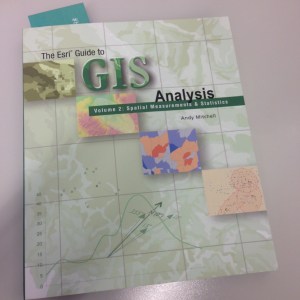
Book Review: The ESRI Guide to GIS Analysis Vol. 2: Spatial Measurements & Statistics

Title: The ESRI Guide to GIS Analysis Vol. 2: Spatial Measurements & Statistics
Author: Andy Mitchell
Publisher: ESRI Press
Year: 2005
Aimed at: GIS/Analysts/Map Designers – intermediate
Purchased from: www.wordery.com

ESRI GA V2

This textbook acts as companion text for GIS Tutorial 2: Spatial Analysis Workbook (for ArcGIS 10.3.x) where you can match up the chapters in each book. Although not a necessity, I would recommend using both texts in tandem to apply the theory and methods discussed with practical tutorials and walkthroughs using ArcGIS. This is the second book of the series and follows on from The ESRI Guide to GIS Analysis Volume 1: Geographic Patterns & Relationships.

The first chapter is, inevitably, an introduction to spatial measurements and statistics. You perform analysis to answer questions and to answer these questions you not only need data but you also need to understand the data. Are you using nominal, ordinal, interval or ratio values, or a combination of these? The type of value(s) will shape the analysis techniques and methods used to calculate the statistics. You will need to interpret the statistics, test their significance and question the results. These elements are briefly visited with the premise of getting more in-depth as the book progresses. The chapter ends with a section on ‘Understanding data distributions’ which is essentially a brief introduction to data exploratory techniques such as describing frequency distributions, spatial distributions, and the presence of outliers and how they can affect analysis.

Chapter 2 discusses measuring geographic distributions with the bulk of the chapter focused on finding the center (mean, meridian, central feature), and measuring compactness (standard distance), orientation and direction of distributions (spatial trends). These are discussed for points, lines, and areal features and also using weighted factors based on attributes. These are useful for adding statistical confidence to patterns derived from a map. Formulas and equations begin to surface and although not necessary to learn them off by heart, because the GIS does all the heavy lifting for you, it gives insight into what goes on under the hood, and knowing the underlying theory and formulas can often aid in troubleshooting and producing accurate analysis. The last section of this chapter is fundamental to the rest of the text, testing statistical significance. This allows you to measure a confidence level for your analysis using the null hypothesis, p-value, and z-score. This can be a difficult topic to comprehend and may require further reading.

The third chapter, a lengthy one, is based around using statistical analysis to identify patterns, to enhance and backup the visual analysis of the map with confidence or to find patterns not may not have been immediately obvious. The human eye will often see patterns that do not really exist, so alternatively, statistical analysis might indicate what you thought was a strong pattern was actually quite weak. The statistical analysis methods are beginning to heat up and here we are introduced to; the Kolmorogov-Smirnov test and Chi Square test for quadrat analysis in identifying patterns in areas of equal size; the nearest neighbour index for calculating the average distance between features and identifying clustering or dispersion; and the K-function as an alternative to the nearest neighbour index, each used to measure the pattern of feature locations. These are followed by measuring the spatial pattern of feature values using; the join count statistic for areas with categories; Geary’s c and Moran’s I for measuring the similarity of nearby features, and the General-G statistic for measuring the concentration of high and low values for features having continuous values. The formulas for each are presented along with testing the significance of and interpreting the results. The final section of this chapter discusses defining spatial neighbourhoods and weights when analysing patterns. There are a few things to consider such as local or regional influences, thresholds of influence, interaction between adjacent features, and the rate of regional decline of influence.

Chapter 4 is titled ‘Identifying Clusters’ with a main focus on hotspot analysis. First, we are introduced to nearest neighbour hierarchical clustering which is heavily used in crime analysis. While Chapter 3 discussed global methods for identifying patterns and returns a single statistic, this chapter focuses on local statistics to show where these patterns exist within the global setting. Geary’s c and Moran’s I both have local versions and their definition, implementation, and factors influencing the results are discussed and critiqued along with Art Getis’ and Keith Ord’s Gi* method for identifying hot and cold spots.While the methods in Chapter 3 enforced that there are patterns in the data (or not), the methods in Chapter 4 highlight where these clustered patterns are. The last section of Chapter 4 discusses using statistics with geographic data; how the very nature of geographic data affects your analysis, how geographic data is represented in a GIS affects your data analysis, the influence of the study area boundary, and GIS data and errors.

“To the extent you’re confident in the quality of your GIS data, you can be confident in the quality of your analysis results.”

The last chapter ventures away from identifying patterns and clusters and focuses on analysing geographic relationships and using statistics to analyse such. Geographic relationships and processes are used to predict where something is likely to occur and examining why things occur where they do. Chapter 5 looks at statistical methods for identifying geographical relationships with a Pearson’s correlation coefficient and Spearman’s correlation coefficient discussed and assessed. Linear regression (ordinary least squares), and geographically weighted regression are presented as methods for analysing geographic processes. These methods warrant a full text in their own right and there is a list of further reading available at the end of the chapter.

Overall Verdict: I feel that I will be referring back to this text a lot. Having recently completed a MSc in Geocomputation I wish that this had crossed my path during the course of my studies and I would highly recommend this book to anyone venturing into spatial analysis where statistics can aid and back up the analysis. Although they are littered throughout the chapters, you really do not need to get bogged down with the formulas behind the statistical analysis techniques, the most important points is that you understand what the methods are performing, their limitations, and how to assess the results and this book really is a fantastic reference for doing just that. Knowing the theory is a huge step to being able to apply the analysis techniques confidently and derive accurate reporting of your data.